Grok Settings UI: 6 real screens

Artificial Intelligence
This is the settings design from Grok, a artificial intelligence application. Grok grok is xAI's AI assistant at grok.com, built by xAI and tied to the X account system (its sign-up pages reference SpaceXAI terms). Sign-up runs through accounts.x.ai with X, email, Apple, Google or GitHub, then an email one-time code, a terms update and an age screen. The web app opens on a What's on the agenda today prompt bar with a model picker (Fast, Build, Auto, Expert and Heavy), a plus menu for file upload, Projects, Skills, connectors and Files, and Image and Video modes for creation, plus a Private chat toggle. Answers can include structured tables and a Thought step, with a left sidebar of chats, a Library for uploaded and generated files, Projects with example templates (Legal Document Reviewer, Cover Letter Writer, Writing Assistant, Fitness Advice), a command palette search, and a conversation menu to share, pin, rename, add to a project, archive or delete. Settings cover Account, Appearance, Behavior, Notifications, Customize, Connect Apps (Gmail, Google Drive, Google Calendar, GitHub, Notion and more), Skills for reusable tasks and file types, Automations templates such as Morning Brief and Weekly Review, and Data Controls for model improvement and chat link sharing. The free plan limits image generation and shows an Upgrade prompt. The upgrade page shown here was a Black Friday offer with Plus, Premium, Super and Ultra tiers, priced in rupees for an India account. Settings page UI patterns from real SaaS products. Account preferences, configuration screens, and admin panels. We have 6 settings screenshots from Grok showing different states and variations of this pattern.
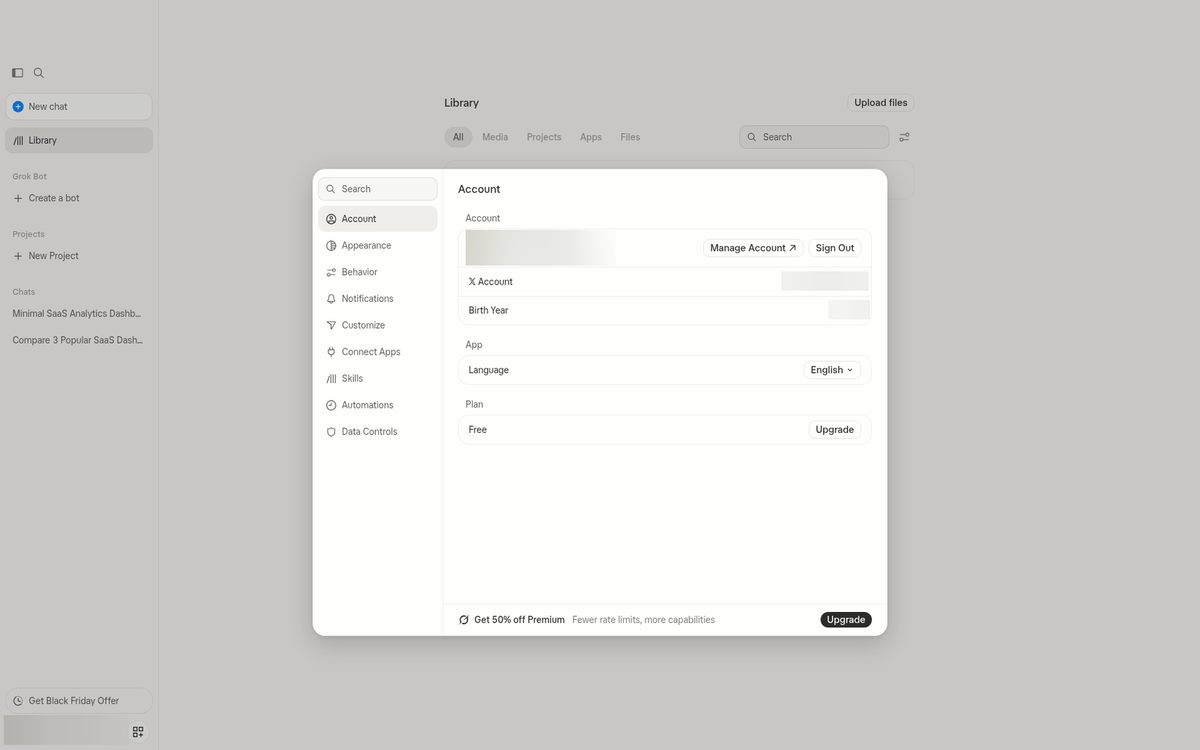
Settings — Account
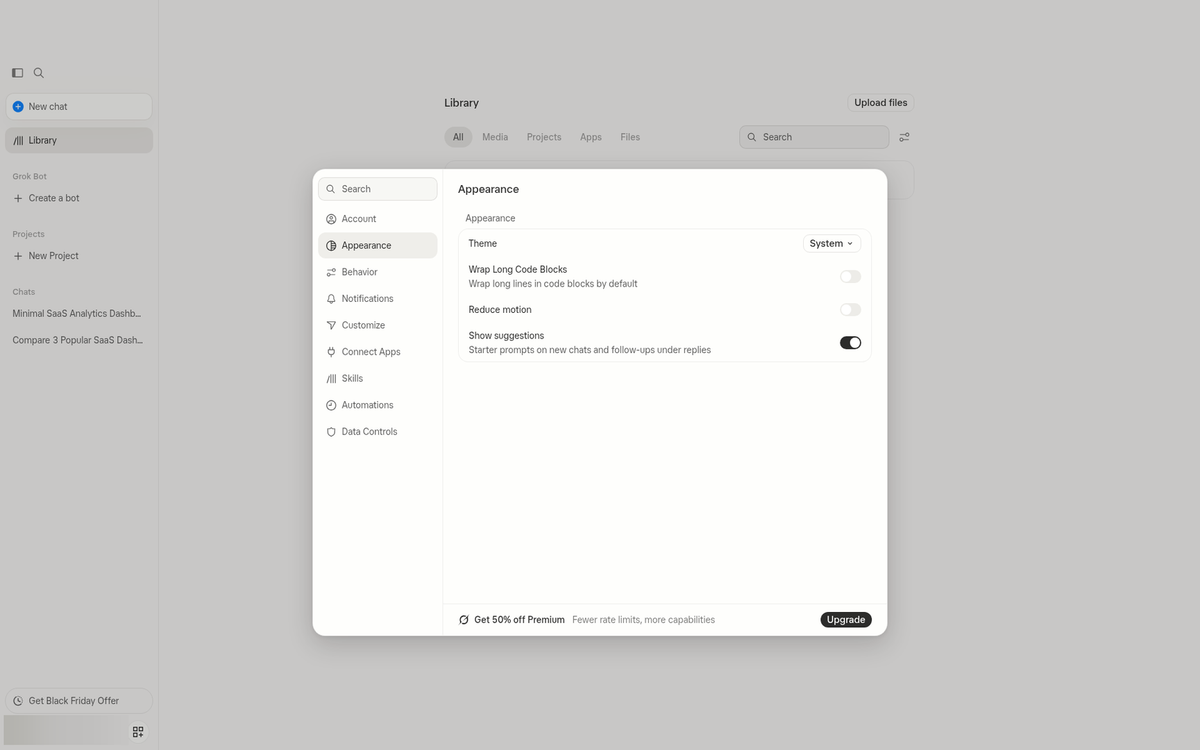
Settings — Appearance
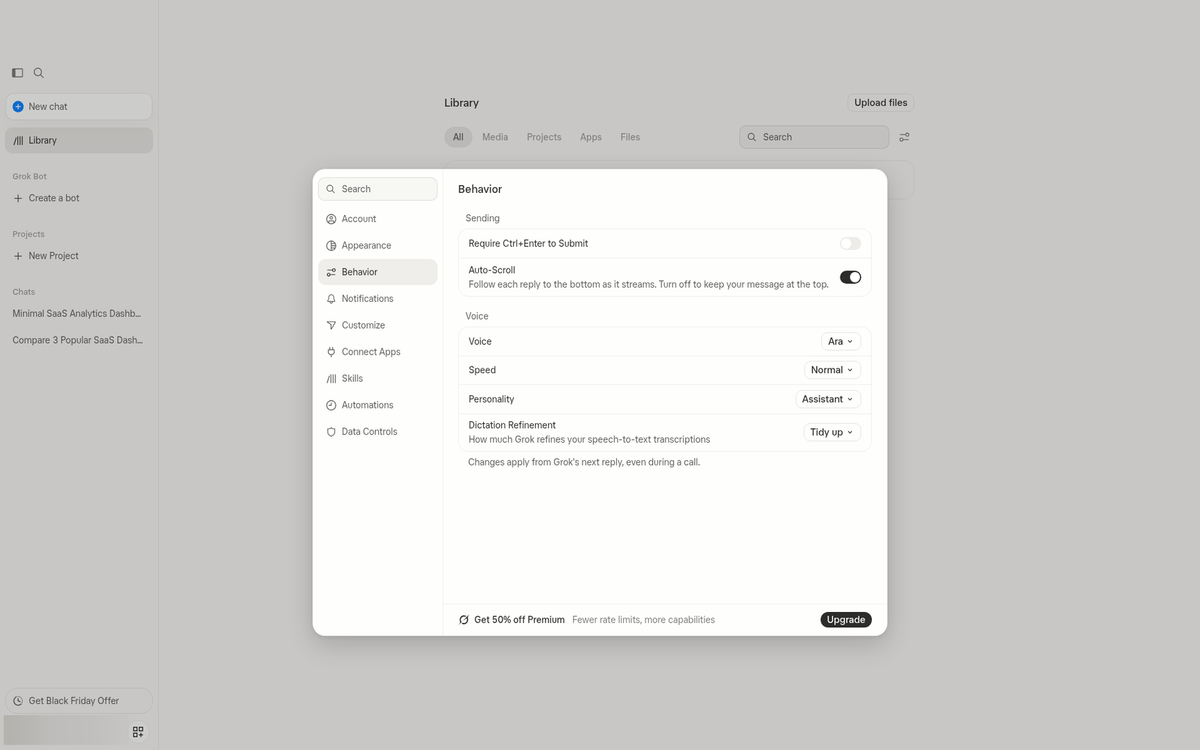
Settings — Behavior
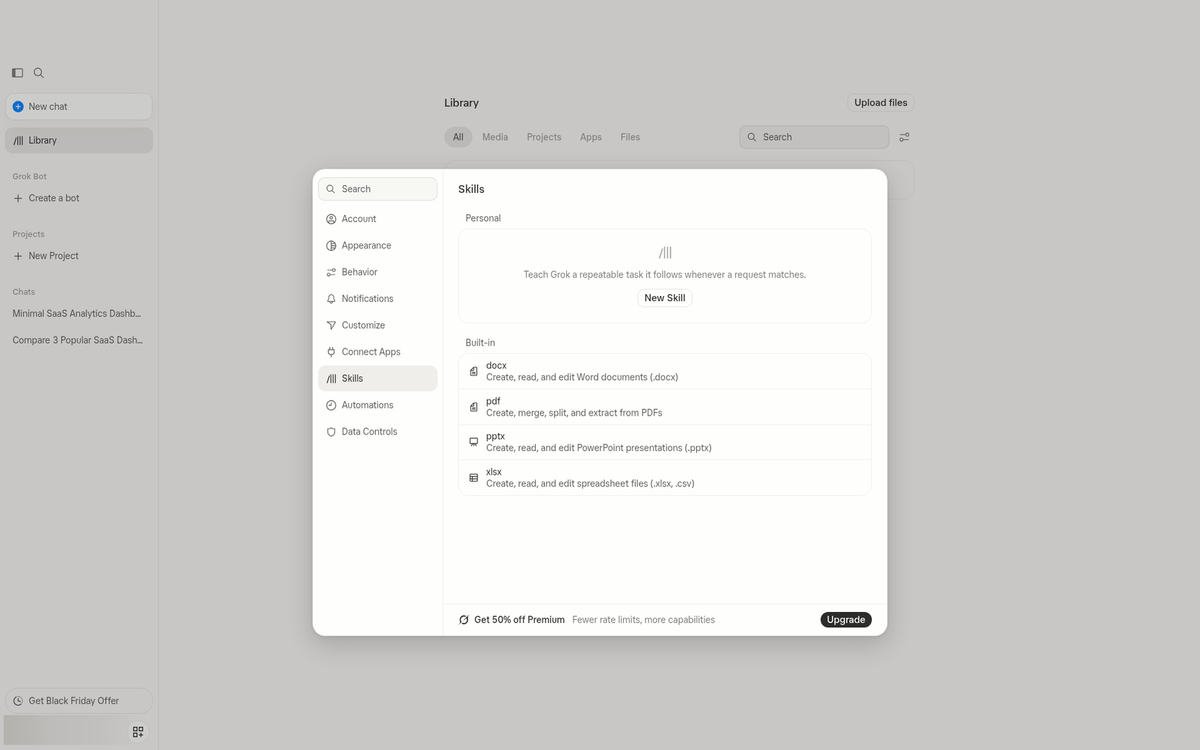
Settings — Skills
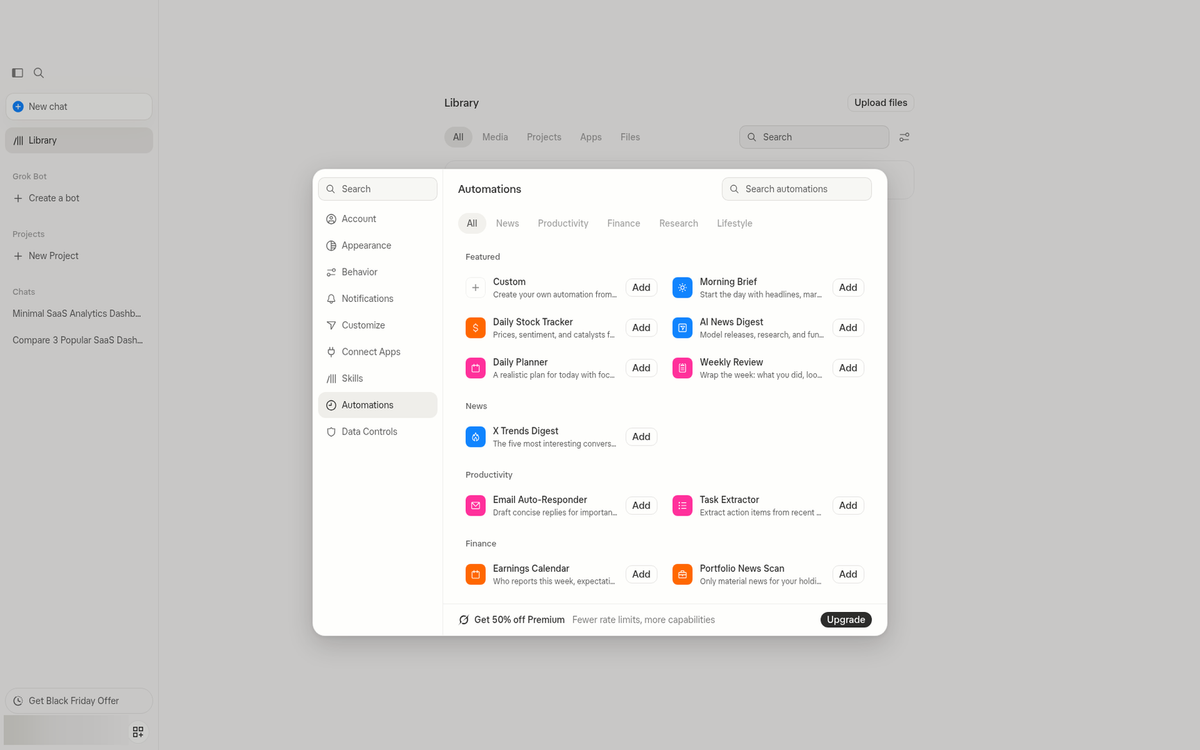
Settings — Automations
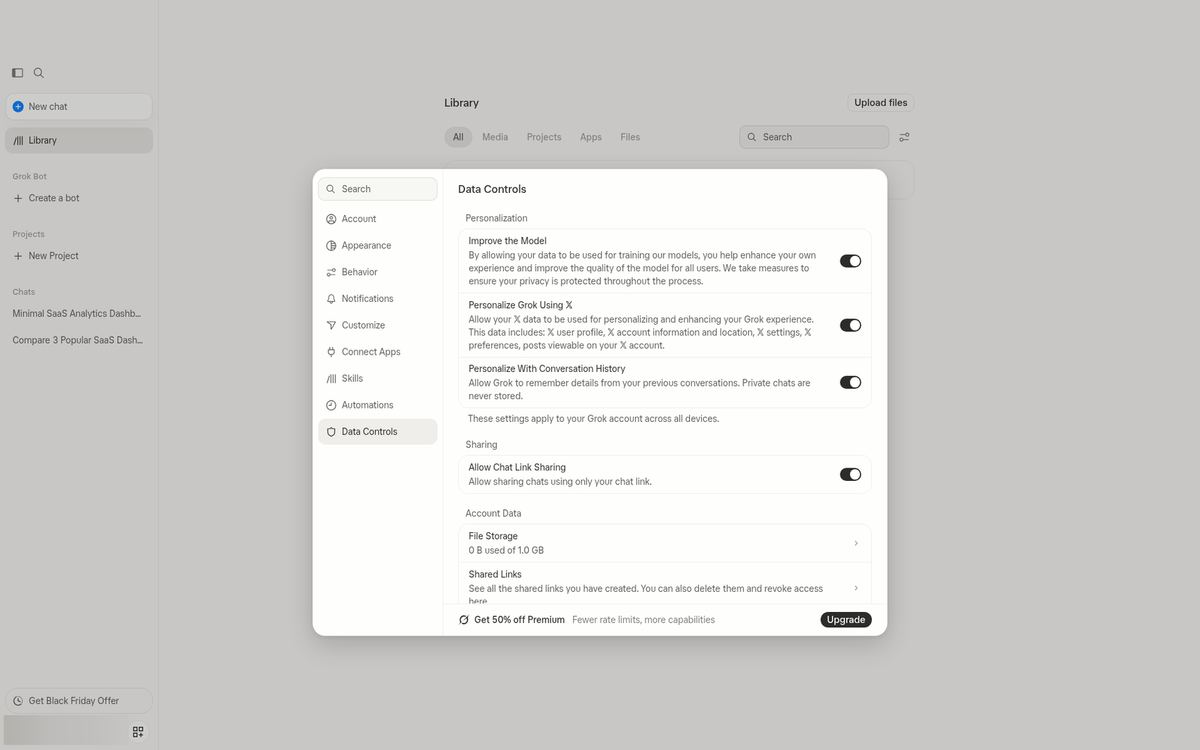
Settings — Data Controls
What these 6 screens show
- Settings — Account
- Settings — Appearance
- Settings — Behavior
- Settings — Skills
- Settings — Automations
- Settings — Data Controls